
Protected PDF File ViewersInstalled or Zero installation PDF ReadersOur FREE Secure PDF Viewers enable you to view protected PDF files (PDC files) on a variety of Operating Systems. You can either install a Viewer on Windows, Mac, iOS or Android devices, or use our zero installation viewers that can be accessed via a browser using any Operating System, or via a USB device.  |  |
Overview
Secure PDF File Viewer for complete PDF File Security

PDF document security viewer implementing DRM controls
Safeguard Secure PDF Viewer controls authorized viewing of secure PDF files published in the PDC file format. Safeguard Secure PDF Viewer supports PDC files protected with Safeguard PDF Security and Enterprise PDF DRM.
Safeguard Secure PDF Viewer is a FREE standalone application that enforces the licensed use of secure PDF documents (for example how long they can be viewed, if they can be printed, etc.). Document controls are set and licensed by the document publisher and cannot be altered by the user or Locklizard. Copy control measures enforce document protection whilst remaining transparent to the document user.
Installed Viewers
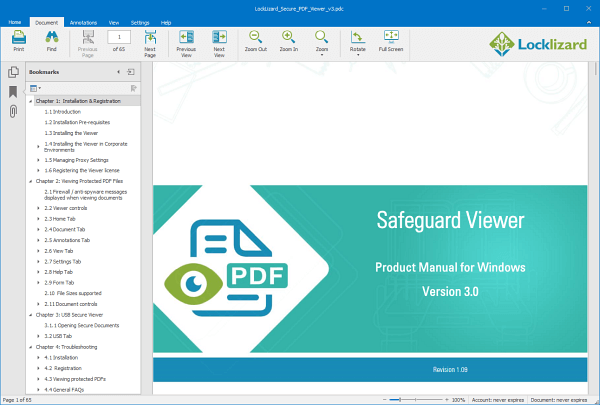
Our installed Viewers let you use protected PDF documents offline (subject to controls set by the document Publisher), are quick, and provide enhanced functionality. Safeguard Secure PDF Viewer can be installed on any device running Windows, Mac, iOS or Android, and can be download from our web site.
Zero installation Viewers
If you don’t want to install a Viewer, you can view protected PDF documents from a Web browser with Safeguard Web Viewer, or a USB stick with Safeguard PDF Portable. These Viewers are not available to download from our Web site – they can only be obtained from the document Publisher.
- Safeguard Web Viewer requires you to always be online and works with any of the supported browsers on any OS.
- Safeguard PDF Portable Viewer can be run directly from a USB stick. It is only available for the Windows OS.

 | How to Open a PDC FileNeed help opening a a Locklizard secure PDF file? – How to open a PDC file or document. |
How it works
Viewing protected PDF files
Before you can open a secure PDF file (PDC file) you have to either:
- install a Viewer
- login to the Web Viewer
- be sent a USB stick that contains secure PDF files, a Viewer and a keystore
Install the Secure PDF Viewer
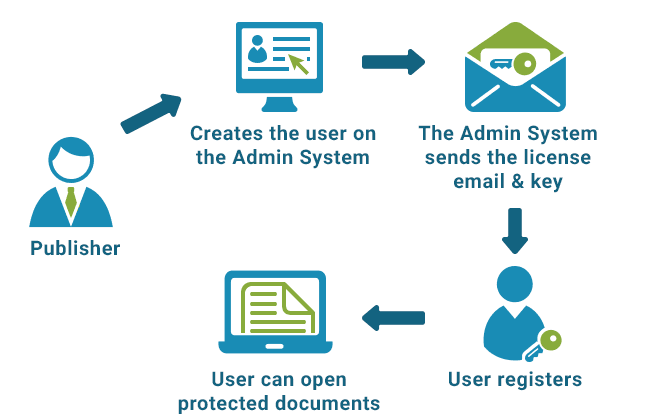
You will have been sent an email with instructions to download the Viewer and your license file to view secure PDF files.
Install the Viewer, then click on the license to activate it (register). Activating the license verifies your account and enables you to open the secure documents you have been given access to.
Log in to the Web Viewer
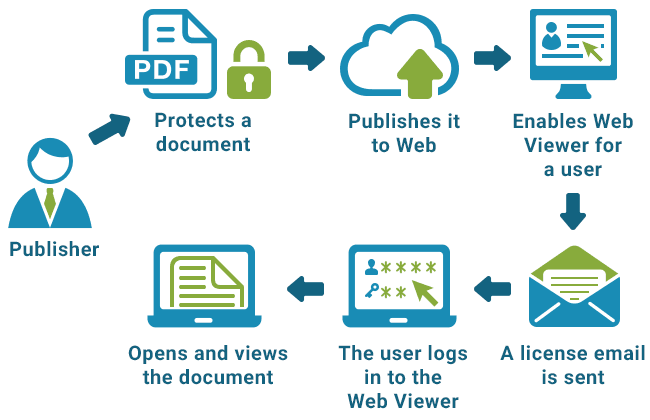
If you have been given Web Viewer access then you don’t install a Viewer – instead you view secure PDF files in your browser.
You will have been sent an email with with your login details for the Web Viewer. Click on the login link and enter your username and password.
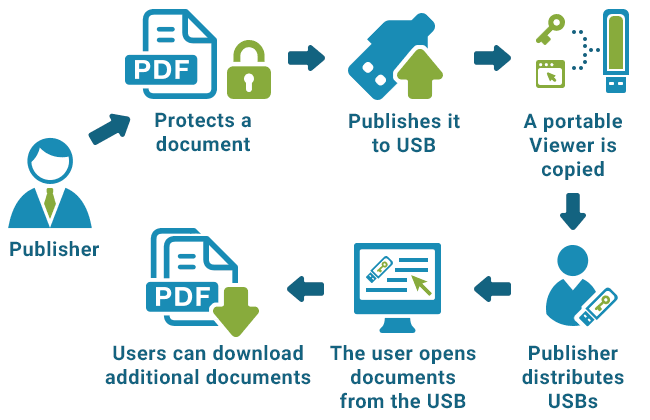
Open Secure PDF files on a USB Device
If you have been given a USB device with protected PDF files (PDC files) then this will already contain the Secure Viewer – you don’t install anything.
Just click on a protected PDF for it to open.
 PDF Decryption process for the Secure PDF Viewer (installed version)
 PDF Decryption process for the Secure PDF Viewer (installed version)
When you view a secure PDF file (PDC file) for the first time, the Secure PDF Viewer software will check if it already has the correct key needed for decryption so that you can view it. If it does not, the Secure PDF Viewer will check with your publisher’s administration server to see if you have been granted access to the document, and the rights that pertain (you MUST be connected to the Internet at this point). If access is allowed then the decryption key is securely transferred from the administration server to the Secure PDF Viewer and you are then able to view the secure PDF document.
If access is not allowed, a message, set by the publisher, will be displayed telling you how they wish to be contacted so that you can gain access to the secure PDF file.
After a secure PDF document has been successfully opened, you may not need to connect to the Internet unless the publisher of the secured PDF document requires this or you take an action such as making a printed copy, that has to be verified online before it can be allowed.
If a publisher has protected documents to a publication that you have been granted access to, then once you have viewed one secure PDF document from that publication, you will not have to connect to the Internet again to use other secure PDF documents in that publication, unless the publisher’s controls require you to.
Features
Secure PDF Viewer Features
 | FREE Secure PDF Viewer software to view protected PDF files that may be distributed only without modification |
 | Choice of installed or zero installation Viewers |
 | Secure PDF Viewer can be installed on a device, accessed via a browser – Web Viewer , on run directly from a USB stick – Secure USB Viewer |
 | No insecure plug-ins or weak implementations |
 | JavaScript is prevented from running for installed and USB Viewers to prevent malicious code execution – see PDF security issues |
 | No self-decrypting EXEs |
 | Content decrypted in memory |
 | No temporary files created on disk |
 | Simple for users to license – just double-click on a license file to register |
 | Transparent real-time web based user validation |
 | Installed and USB Viewers have no passwords for users to enter, manage, forget or pass on to others |
 | Complete off-line PDF protection – no need for users to connect to the Internet to use secure PDF files once they are licensed |
 | Automatically prevents document copying, modifying and saving for maximum copy prevention and protection |
 | Automatically stops screen grabbing – prevents use of Windows print screen and screen grabber applications |
 | Automatically prevents printing to file, PDF format (Acrobat distiller and other PDF print drivers), common image printers, etc. |
 | Secured PDF files are locked to authorized computers ensuring they cannot be shared |
 | Persistent end-to-end protection throughout a documents life-cycle |
 | Works with the following operating systems: Windows, Mac, iOS, Android, or any OS using our Web Viewer |
 | Windows Viewer supports the following languages: English, French, German, Spanish, Chinese (Mandarin), Dutch, Russian, Turkish, Czech |
Security
PDC Viewer Security & DRM Controls
Why our own Secure PDF Viewer achieves security & independence
 Why our own Secure PDF Viewer achieves security & independence
Secure PDF content cannot be compromised by other applications or the common Adobe PDF security flaws and cracks because:
 | NO Plug-ins PDF file security is not compromised by plug-in failures or conflicts. In fact, we believe that plug-ins are potentially so insecure that we prevent them from loading so they can’t compromise our security. See Adobe PDF plug-in vulnerabilities. |
 | NO JavaScript JavaScript is one of the commonest forms of malicious attack. We do not allow JavaScript to run in any of our installed Viewers since it can seriously compromise user’s computers – see PDF security issues. |
 | NO Adobe Acrobat We don’t have to update our PDF security product every time Adobe updates Acrobat in order for it to work. We don’t rely on the Adobe Viewer at any time. |
 | NO Passwords NO passwords are required or distributed to grant access to secure PDF content since they can be easily removed – see removing PDF password protection. |
 | NO temporary files Secure PDF documents are only ever decrypted on-the-fly in memory. Secure PDF files are never saved to disk in temporary format or to the Windows swap file. |
For a more detailed security overview see our DRM technology.
PDF DRM Controls for PDF Document Protection
When you protect PDF files you have to specify the document access controls to stop copying, prevent printing, disable print screen, and other DRM protection measures used to protect copyright and prevent intellectual property theft. The Viewer software enforces these PDF controls.
There are some general DRM controls that must always be present. Secured PDF content must always be protected from editing. Secure PDF documents must be locked to individual computers to make sure they cannot be shared. These controls cannot be achieved without the use of application software (a Secure PDF Viewer) that can effectively enforce these requirements.
You can check to see which secure PDF controls that have been applied to a document and who the publisher is just by placing the mouse over the protected document, or by right clicking on it, selecting Properties (last option on the panel) and then clicking on the Secure PDF file tab.
Users and publishers need to be aware of the secure PDF controls that are available, and that controls may overlap. A list of controls and their impacts is given below.
- The publisher may have placed controls on the secure PDF document that require you to connect to the Internet whenever you want to use a document, or connect occasionally, and the viewer will automatically enforce those controls. If an Internet connection is required, the secure PDF document will not open until the license has been checked.
- The publisher may only have licensed you to view a secure PDF document for a specific number of times. If that is the case you must be connected to the Internet in order to view the secure PDF document.
- The secure PDF document may no longer be usable after a certain number of views, prints, days from when you first viewed it, or it may be set to expire on a specific date.
- You may or may not be able to print a secure PDF document (the print icon therefore may or may not be enabled) and/or printing may be limited to a number of copies.
- When you print a secure PDF document a watermark image or text may be displayed on the printed document and this may include your name, company name, email address, and a date/time stamp.
- The publisher may have allowed printing but prevented colour prints – so printing is enforced in either black & white or grayscale.
- You may be prevented by the publisher from viewing a secure PDF document in thin-client and virtual environments unless you obtain a license for the environment.
- The publisher may have prevented use of certain devices. Use of the secure PDF file may have been prevented on Macintosh, Android, and iOS operating systems.
- The publisher may have restricted the location (i.e. office only) from where you can use secure PDF files.
- The viewer window size may be preset and fixed if the publisher has decided on that option, and/or certain viewer controls may not have been made available.
- The publisher may have licensed you to view a secure PDF file on one or more computers. However, one computer is the default license.
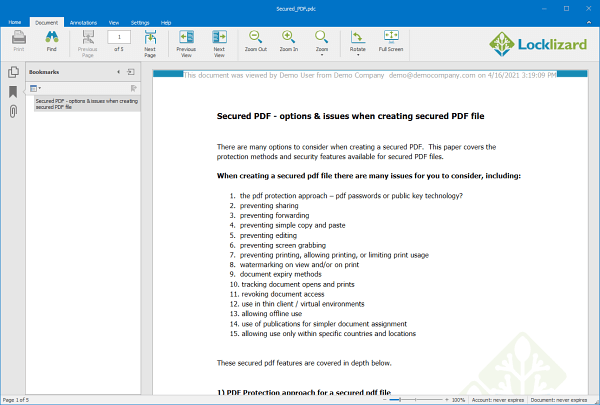
- Details of when your account with the publisher of the secure PDF file expires (if ever) and also when the secure PDF document you are viewing expires (if ever) are displayed at the bottom of the Secure PDF Viewer window in the status bar.
Screenshots
Viewing Protected PDF Documents
PDF document usage controls are enforced by Safeguard PDF Security and cannot be circumvented. Details of when the user account expires and when the PDF document expires (if at all) are displayed at the bottom of the Secure PDF Viewer.
- Windows Secure PDF Viewer

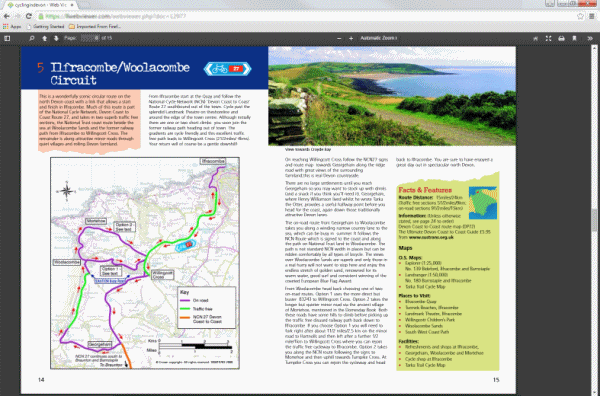
- Secure PDF Browser Viewer: Clicking on a protected document in the Web Viewer displays it in the browser. No installation or registration is required.
- Mac Secure PDF Viewer
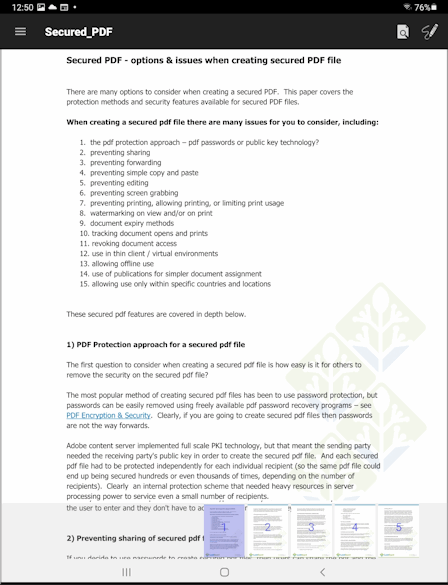
- iOS Secure PDF Viewer
- Android Secure PDF Viewer



User Registration & License Activation
- A license file email is automatically sent to each user when you create an account for them. Users install the Secure PDF Viewer and register with you so they can view protected PDF documents.
- If you have published protected PDF documents with Web Publisher then users will receive an email with login details to their protected document portal.


Alternatively, the Secure PDF Viewer and protected PDF documents can be distributed on USB with Safeguard PDF Portable – no registration or Internet connection is required.
Technical Info
 | Installed Viewers
Zero Installation Viewers
|
Demo
PDF Document Restriction Demo: restrict & control PDF access
This demo enables you to view a protected PDF document in Safeguard Secure PDF Viewer so you can see what users will experience when viewing/using your rights management protected PDF documents.
If you want to evaluate the full features of Safeguard PDF Security (creating your own protected PDF files, administering users, etc.) then you can download a FREE 10 day evaluation.
PDF Security Controls being demonstrated
The following functions are disabled:
 | Printing |
| Copying, modifying and saving content |
| Windows print screen (including use of common third party screen grabbers) |
STEP 1: INSTALLING AND REGISTERING THE SECURE PDF VIEWER SOFTWARE
This is how to register to access files that have been protected with Safeguard PDF Security. There are two actions: installing the secure viewer, and registering your license.
Installing the Secure PDF Viewer
Download and install the secure PDF viewer software by
- Clicking on the following link: Secure PDF Viewer Download
- Saving the Safeguard Secure PDF Viewer software to your disk.
- Double-clicking on the program (exe file) to run the installation process.
Registering your license
Before viewing a Safeguard protected PDF file (.PDC file) for the first time, you must register with the publisher of those files (for this demonstration Locklizard is the publisher). If you do not register, you cannot view protected files. To register:
- Click on the following link safeguard_demo_license and select the Open option.
- Your registration will be acknowledged
STEP 2: VIEWING THE PROTECTED PDF DOCUMENT
Once your license is registered:
- Click on the following link Secured_PDF.pdc and select the Open option.
- The protected PDF file will be displayed in the Safeguard Secure PDF Viewer.
NOTE: Try viewing the PDC file with Notepad or Wordpad. You will see that the page contents are encrypted.
DEMONSTRATION OF FURTHER PROTECTED PDF CONTROLS
 Printing Allowed
 Printing Allowed
This shows a protected copy of the Safeguard PDF Security product manual with printing enabled. When you print it, watermark text is displayed on printing across the top and bottom of the page. No watermarks are displayed when viewed.
- Click on the following link Secure_PDF_Viewer_manual.pdc and select the Open option.
- The protected PDF file will be displayed in the Safeguard Secure PDF Viewer.
Thin Cient Environments Allowed (e.g. Citrix)
This shows a protected document which can be used in a Citrix environment.
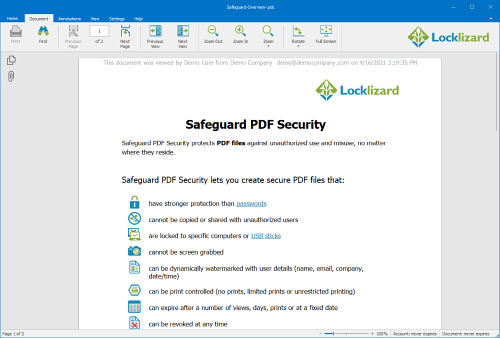
- Click on the following link Safeguard-Overview.pdc and select the Open option.
- The protected PDF file will be displayed in the Safeguard Secure PDF Viewer.
Any Problems?
 Any Problems?
If you have any difficulty registering the product or viewing protected PDF files then please view the knowledgebase or contact support@locklizard.com.
The Safeguard Secure PDF Viewer manuals can be downloaded from here.
Customer Testimonials
We needed to deliver e-book versions of our handbooks while not compromising on security and digital rights. Safeguard PDF security is easy to use and intuitive.
The implementation was painless and we now have a greener, more secure way of distributing training manuals.Locklizard’s PDF protection is exactly as described – the features are highly effective and I would give it 5 stars.
I would recommend Locklizard to others - their security is simple to use and fit for purpose. It meets common needs of businesses who have information they want to protect.We would be happy to recommend Locklizard to any company needing a flexible way to secure PDF files.
Safeguard PDF Security has provided us with a very workable solution for sharing of information in a secure fashion. The support has been excellent and very accommodating.We can cut accounts for a user five minutes before his class starts and he is ready to go. Happy smiling customer, while we still have security and personalized watermarking.
I have immense respect for the product and Locklizard provide great customer satisfaction and service.We would recommend Safeguard to other companies for its security, cost and ease of use. It does what we expected it to do and more.
Ease of use is a bonus and the implementation was very easy. The product manual is excellent and Locklizard staff are very accommodating.We sell a highly valued educational product in an open and competitive market so it was important to ensure we had effective security to protect our digital rights.
We highly recommend Locklizard - a professional company with a competitive and professional PDF Security product.We would absolutely recommend both Locklizard as a company, and Safeguard PDF Security. It has transformed our study materials to the next level.
Not only did this increase sales, but we also believe that it has increased our customers’ ability to learn, which is even more important!We would recommend Locklizard Safeguard to other companies that need to protect PDF reports. Customers have found the process of accessing the protected documents to be seamless.
Implementation was easy and technical support has been very responsive to requests for help.Our company would without reservation recommend Locklizard. Their document DRM software opens up delivery of our new products in a timely fashion while knowing that the content will remain secure.
The return on investment to our company has been immediately evident.We use Safeguard to make sure that documents cannot be opened outside our local network or from a unauthorized computer in order to copy or print the documents.
It is the most feature rich, affordable, & simple to use PDF security product on the market.Safeguard PDF Security is simple to administer and meets our needs, consistently delivering secured manuals to our customers with ease.
Return on investment has been elimination of many man hours, printing resources and postage – it is estimated that costs decreased by 50% or more.We would really recommend Safeguard PDF Security to every publishing company for managing ePubs or e-books securely. It is easy to secure PDF files and simple to distribute them to our authorized customers only.
Locklizard also provides a good customer support experience.The ROI for us is incalculable. We have the security of knowing that our proprietary documents are secure. This is the entire value of our company.
I would most certainly recommend your PDF security product and already have. The ease of implementation was surprising.We can now sell our manuals without the need to print them first, saving time, money and helping safeguard the environment.
We would recommend Safeguard PDF DRM – it is the perfect solution to sell and send e-documents securely whilst making sure someone cannot copy them.We would recommend Locklizard to other companies without hesitation.
Their PDF DRM products provide a manageable, cost effective way to protect intellectual investment and they are always looking for ways to improve them. Moreover, their staff provide an excellent level of support.